- ClashFree
- Help center
Help center · Revit 2023–2027
ClashFree, screen by screen.
Install, activate, import a report, choose your trade, send clashes to the AI, then review each fix and keep or reject it. Nothing changes in your model until you click Keep. Each section shows the screen with numbered callouts; short clips follow during the beta.
01 · INSTALL
Install ClashFree
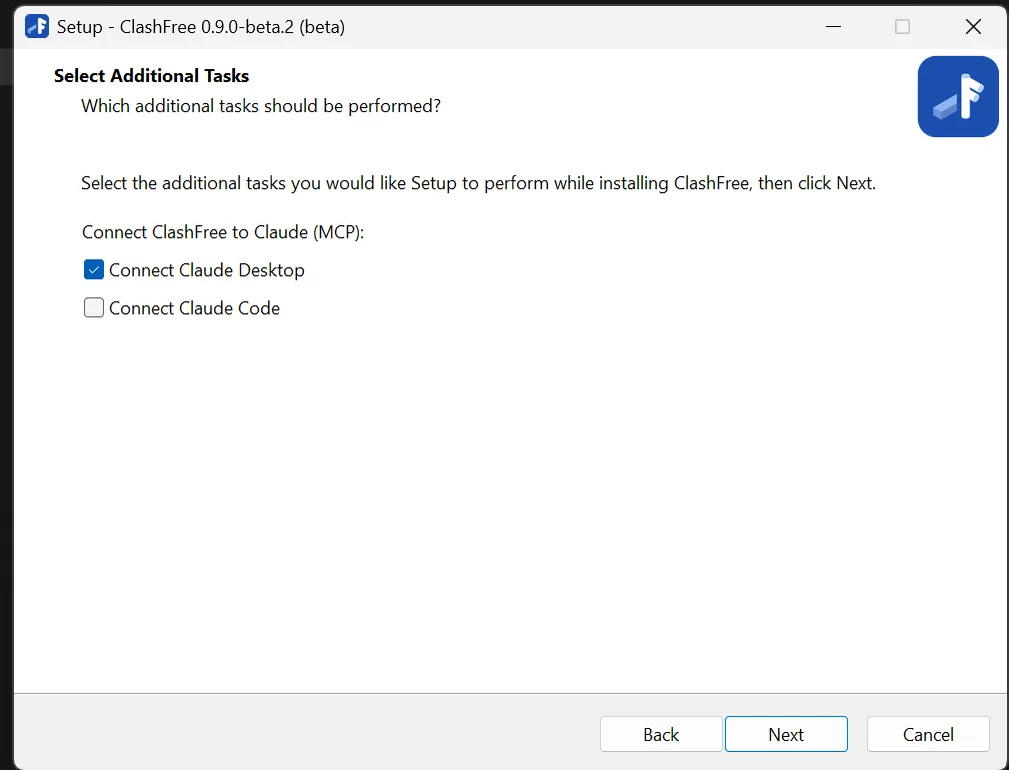
Close Revit and run ClashFree-<version>-setup.exe from your welcome e-mail (Revit 2023–2027, Windows 10 or 11; no administrator rights). Tick the Revit versions and, if you use it, Claude Desktop or Claude Code; the installer connects them for you. Beta builds may be unsigned: if Windows shows Windows protected your PC, click More info, then Run anyway.
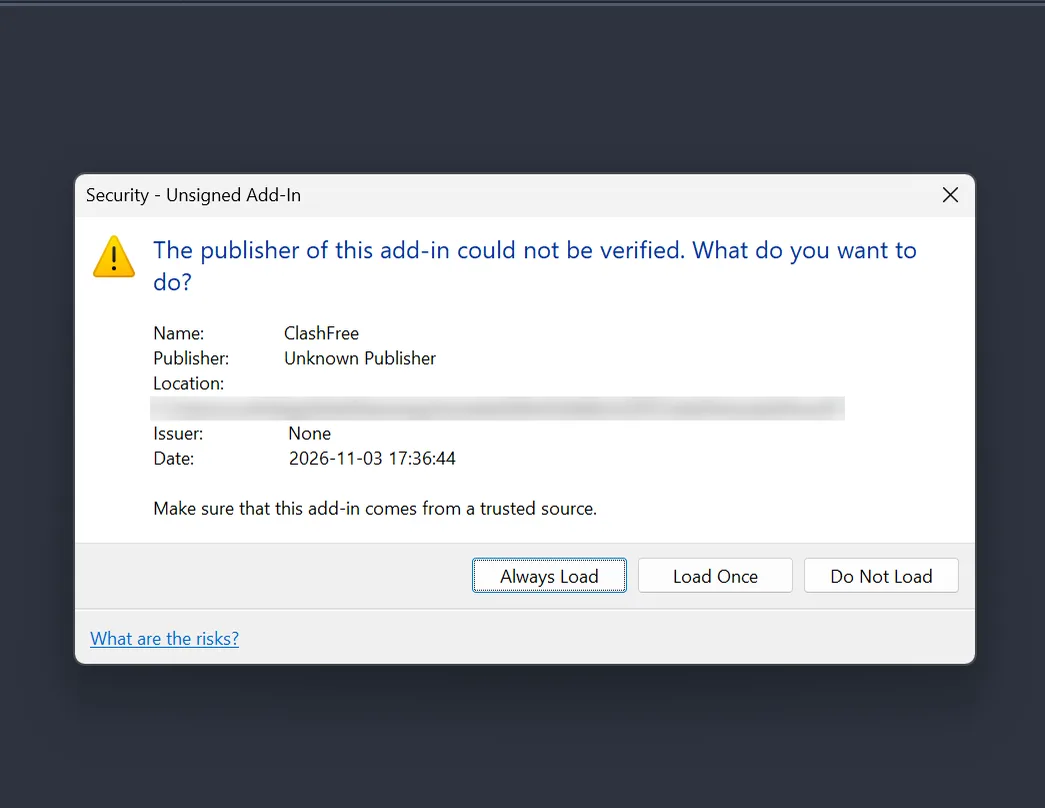
Start Revit. If it asks about an unsigned add-in, choose Always Load, then open ClashFree tab → ClashFree to show the pane.
02 · ACTIVATE
Activate the beta and set up the AI
Your invite code comes in the welcome e-mail after you sign up and confirm your address. Until you activate, ClashFree is locked.
- In the pane, type the e-mail you signed up with and your invite code, then click Send code.
- Type the 6-digit code from the e-mail (valid 10 minutes) and click Activate. Send again mails a new one.
- The header shows your trial pill, for example Trial · 15 days left. The 15 days count from your first activation, per e-mail address; reinstalling does not restart them. One invite code activates up to three PCs.
Choose how the AI runs
- Your Anthropic API key: ribbon ClashFree tab → API key, paste the key. It is stored encrypted for your Windows user and never logged. Usage is billed by Anthropic.
- Claude Desktop or Claude Code: no key in ClashFree; Claude works on your own Claude plan over MCP (section 08).
Until one of them is set up, the pane shows Connect an AI with both options: Set API key opens the add-in's key window, Create a key opens your Anthropic console, How to connect opens the Claude section here. Send to AI works without a key: it only adds clashes to the AI queue. Running the queue from the pane needs the API key (without one, Run reads Set API key); with only Claude connected, ask Claude to take the queued items (it reads them with get_queue) or to work the clashes (for example "fix G-001").
- 1The e-mail you signed up with.
- 2The invite code from your welcome e-mail; Send code mails a 6-digit code.
- 3The 6-digit code, valid 10 minutes.
- 4The trial pill: days left; click it for the beta settings.
03 · IMPORT
Import a clash report
Open the ClashFree pane (ribbon: ClashFree) and click Import clash report. Choose one or more Navisworks XML clash reports or BCF files; several are merged into one list. Help → Quick start walks you through it once.
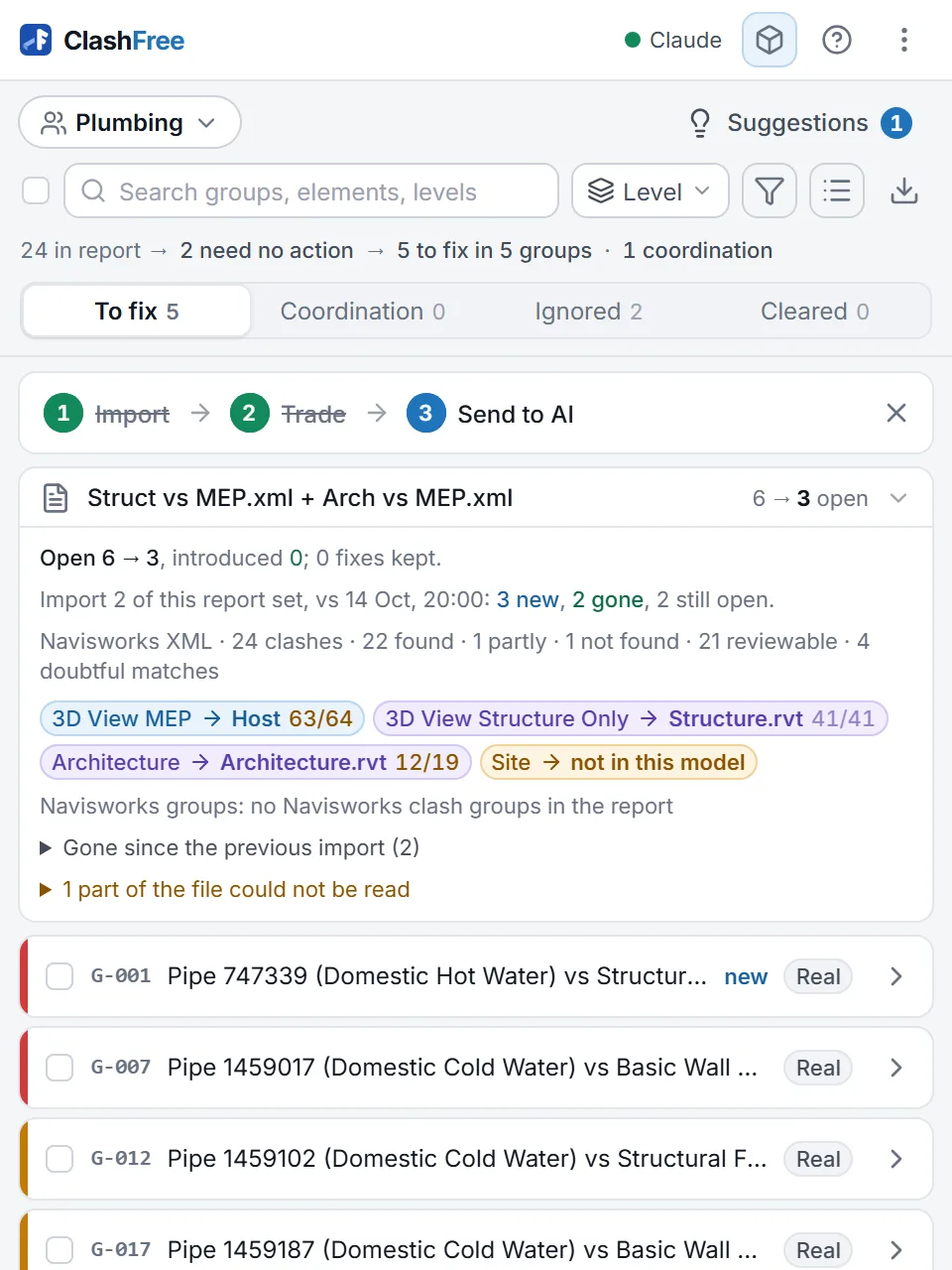
ClashFree finds each clash's two elements in your model and its loaded links, merges duplicates, sets aside what needs no action, groups clashes by root cause (the run that causes them) and ranks the groups: the first group is the one to fix first.
Report details at the top of the list shows which report file is which model, how many clashes were found and, for a re-import, what is new and what is gone. After an import, ClashFree re-tests the clashes in Revit in the background (geometry only, no AI) and moves the ones that no longer clash to Cleared.
- 1Navisworks XML or BCF; pick several files to merge them.
- 2Report details: files, models, clashes found, what is new since the last import.
- 3The background re-test: clashes Revit finds apart go to Cleared.
04 · TRADE
Choose your trade, then To fix, Coordination, Ignored, Cleared
After the first import ClashFree asks once Which trade are you? It remembers the answer; change it any time with the trade pill at the top of the list.
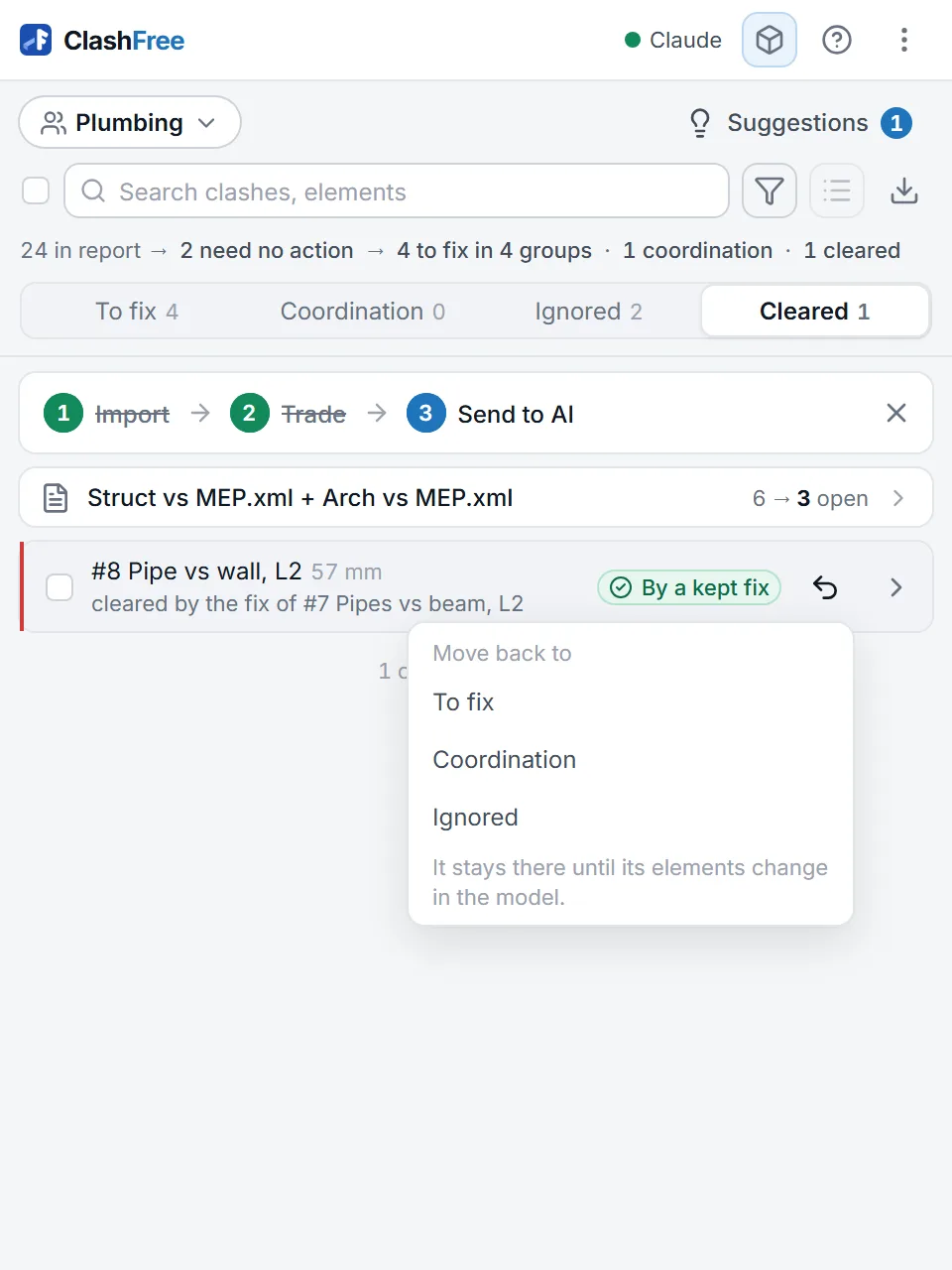
- To fix: your trade's runs that ClashFree can move.
- Coordination: nothing ClashFree may move; another trade or a person decides.
- Ignored: duplicates, clashes approved or resolved in the report, within tolerance, or set aside by you.
- Cleared: clashes that no longer clash: your kept fix, another kept fix that cleared them too, or Revit finding the two elements apart. Cleared clashes are left out of every other count.
After an import, when the pane opens and after each Keep or Reject, ClashFree re-tests the To fix clashes in the background; the header shows Checking n/N. Clashes whose elements have not changed since the last check are skipped. Every Cleared row and the clash page have Move back: to To fix, Coordination or Ignored; it stays there until its elements change.
Search, the Level dropdown and Filters (priority, strategy, AI status, change, related) narrow the list; active filters show as chips. The list icon switches between groups and a flat list of clashes.
- 1Your trade: what ClashFree may move for you; other trades' runs stay read-only.
- 2Four tabs. The colour bar on each row is its priority.
- 3Level, search and Filters narrow the list.
05 · SEND TO AI
Select and send to the AI
Tick the groups or clashes to work on (Shift-click selects a range, Space toggles the focused row, Esc clears). The bar at the top shows what you can do with the selection.
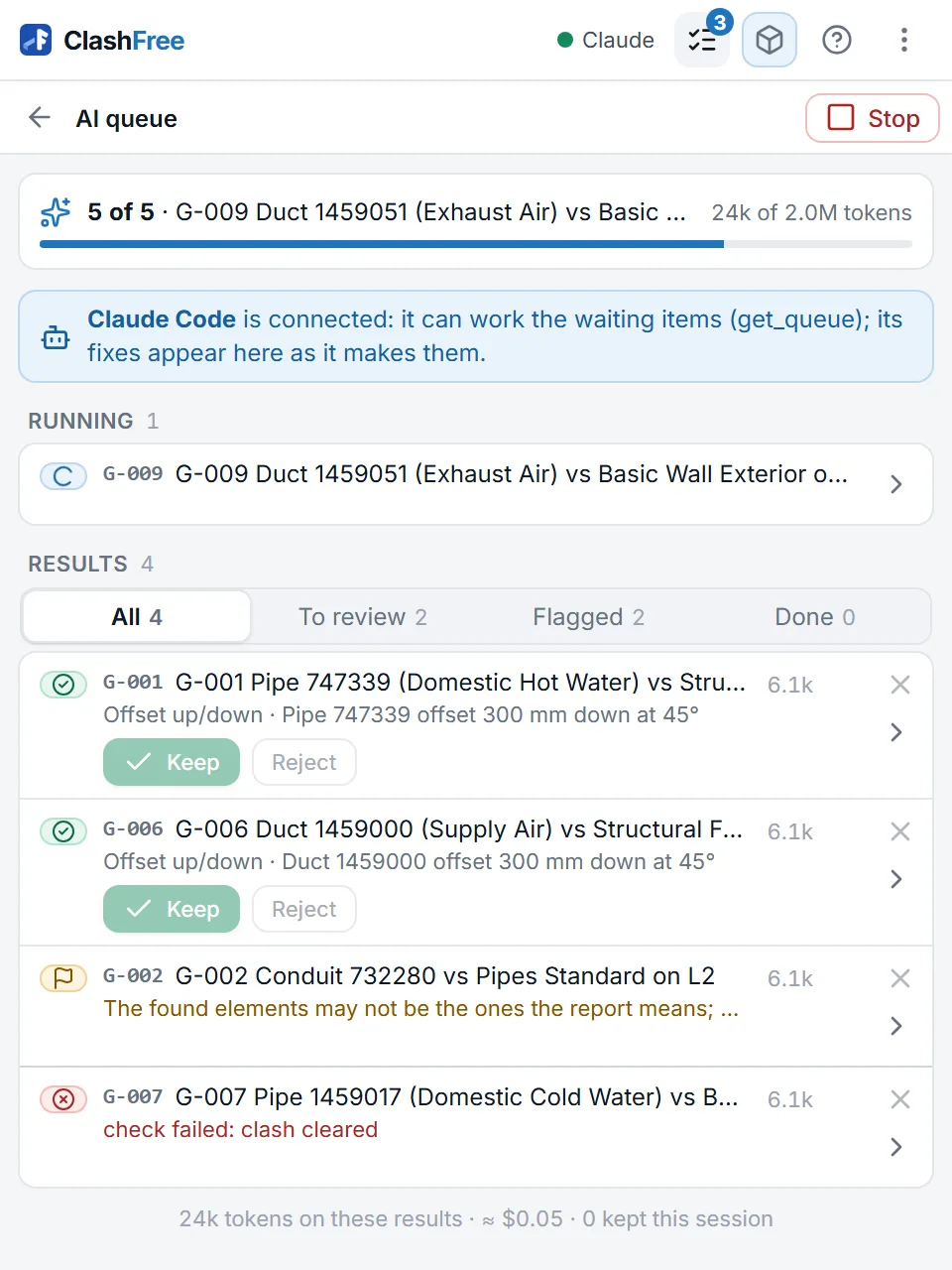
Send to AI adds them to the AI queue and shows the cost first: how many items, which model, about how much. Queueing needs no key. Run works them one at a time with your API key (without one it reads Set API key); a slim bar under the header shows progress and Stop. Claude over MCP can also take queued items (get_queue). The AI queue page lists what is running, waiting and done, with the live budget.
For each clash ClashFree lists every feasible fix, scores it and verifies the best in Revit (apply, verify, roll back) without changing your model. Rows show the outcome: verified, failed, flagged or stale. If an action is greyed out, hover it to see why, for example another trade's run.

- 1The selection bar: Send to AI, Ignore, Mark cleared and more.
- 2The cost confirmation: nothing is spent before you confirm.
- 3Each row shows its outcome as the queue works ahead.
06 · REVIEW
Review a fix: Keep or Reject
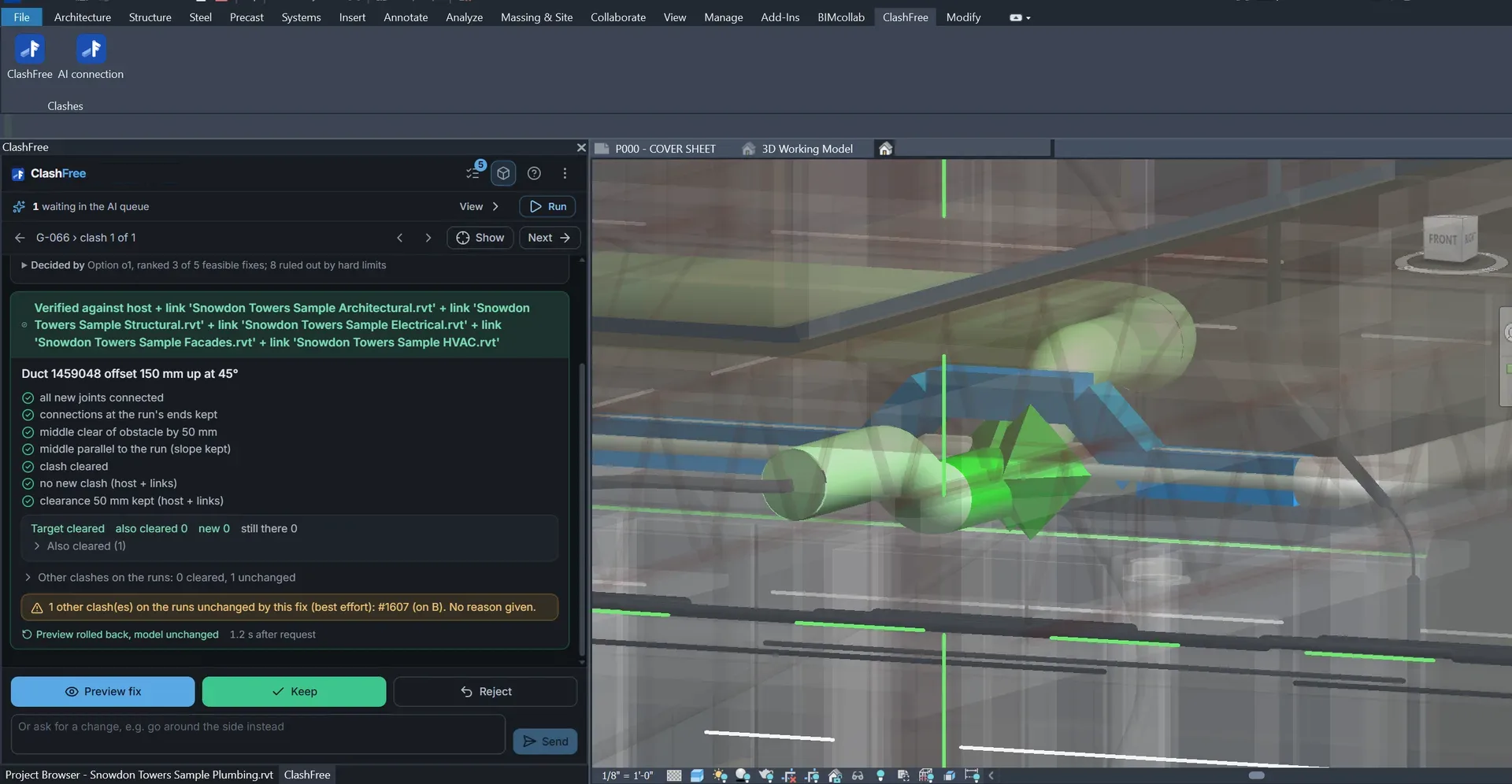
Clicking a row shows it in Revit; its › button opens it (a group's › lists its clashes). The clash page shows both elements, the AI's proposal and why, Revit's verification with a snapshot, and what the fix changes on the run: fittings and length added or saved, parts moved, and what an engineer must re-check (airflow on a duct, the hydraulic calculation on a sprinkler, the fall on a drain).
Preview fix sits right before Keep. It draws the fix's route in Revit as a ghost, with the clash points it clears and any new ones. A fix from the queue has no snapshot yet: Preview fix checks it again with the image, at no AI cost, and Keep waits for it. Keep applies it as one undo step; Reject leaves the model exactly as it was. Show at the top only zooms to the clash with a section box.
Ask for a change in the box below, for example "go over the beam" or "keep 100 mm clearance": you get a new verified preview. Opening a clash rechecks it first; if a fix kept elsewhere already cleared it, the page says No longer clashes in the model and offers Next.
- 1What Revit checked, against the host model and every loaded link.
- 2The fix's bill and what an engineer must re-check.
- 3Preview fix draws the route in Revit as a ghost; Keep is one undo step.
- 4Revise in plain words for a new verified preview.
07 · PICK
Pick a clash in Revit
No report? More → Pick a clash in Revit: first pick the pipe, duct, conduit or cable tray to move, then what it hits, in this model or in a link (press Tab to reach an element in a linked model). Esc cancels.
The clash opens on its own page, exactly like one from a report: ask the AI for a fix, look at the preview, Keep or Reject.
Linked models and other trades' elements are never changed; ClashFree only moves runs of your trade in the host model.
- 1First pick: the run of your trade to move.
- 2Second pick: what it hits; Tab to an element in a link.
08 · CLAUDE
Work with Claude over MCP
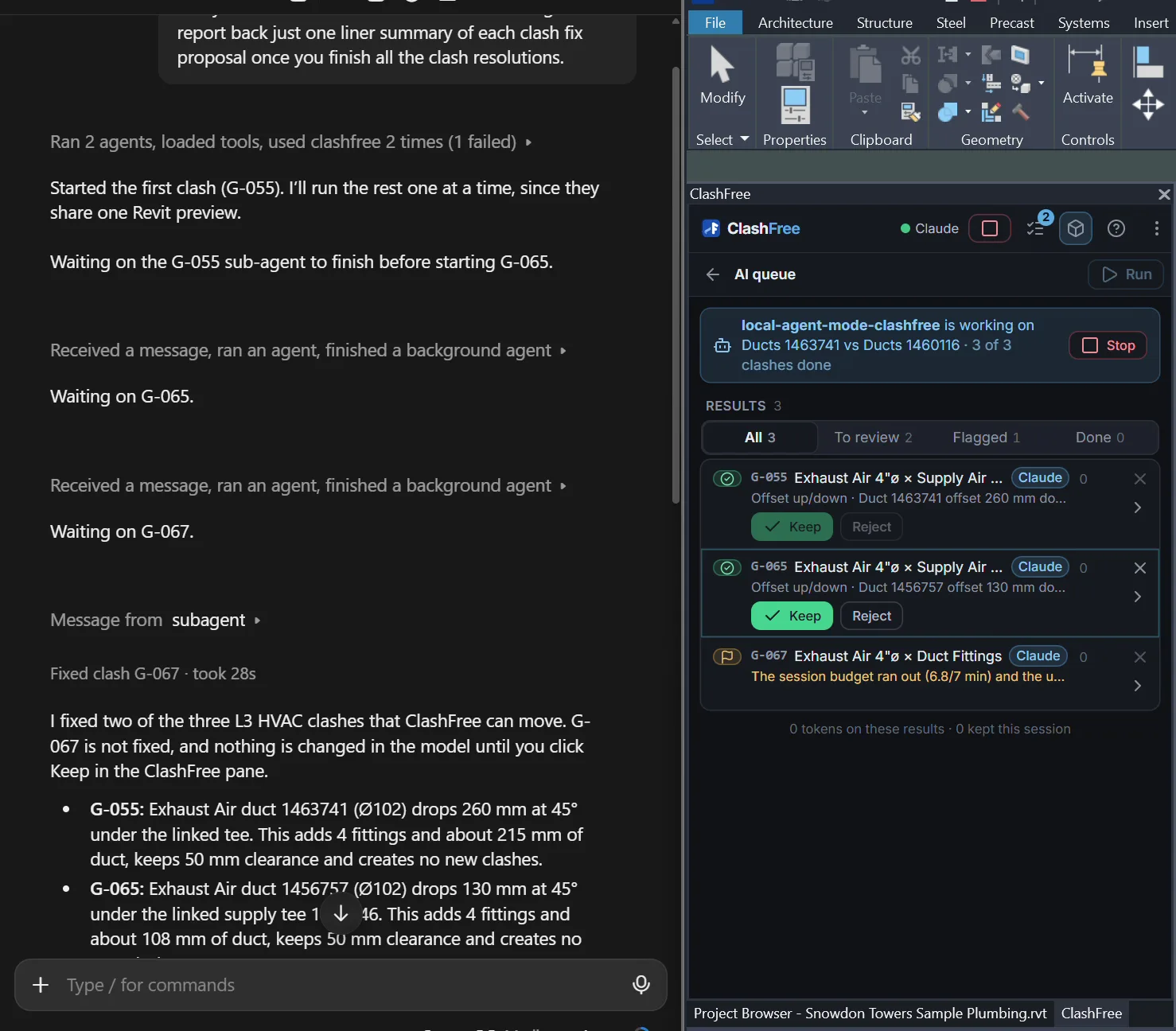
The installer can connect Claude Desktop or Claude Code. With Revit and the pane open, Claude reads the report, opens clashes, looks around them (both runs, free space, sections, the scored options) and proposes fixes through the same checks as the pane's AI, with the same verbs and scored options. It can also explore route frames of its own with plan_route, and it can take items from the AI queue with get_queue. Claude with a green dot in the header shows the connection.
Select two elements in Revit and ask Claude to open the selection: it opens the clash between them (a duct fitting counts as its duct run).
Claude never takes over the pane. When it opens a clash you see Claude opened G-014 · View and a dot on the row. While Claude works on the clash you are looking at, a banner says so; to stop it, stop it in Claude. Keep stays your click. More in the guide Resolve Revit clashes from Claude.
Several Revits open? Claude uses the one with a clash report. If more than one has a report it asks you which model to work on, and that chat stays with it, so another chat can work in another Revit.
Not connected? In a Command Prompt run "%LocalAppData%\Programs\ClashFree\ClashFree.Mcp.exe" doctor with Revit and a model open; its last line goes into a support mail.
- 1Connected over MCP. Claude proposes; Keep stays your click in this pane.
- 2A note when Claude opens a clash; View jumps to it.
- 3Claude's budget on the clash you are looking at, and Stop.
09 · PROFILE
Coordination profile
A profile holds a model's coordination rules: height zones per trade and level, ceiling lines, clearances, wall classes, system classes and the weights that rank fixes. It has three layers: the base (general practice, built in), the project (the team's file) and you (your preferences, soft weights only). A ceiling line or a hands-off class is a hard limit that no preference can loosen.
More → Import coordination profile… loads the team's file; Export coordination profile saves this model's profile, or a starter file, to share.
When you keep the second-ranked option several times for the same reason, Suggestions proposes adjusting your own weights, with the evidence. Nothing changes without your click. Suggestions also holds the AI grouping review (merges, splits, ignores, with their cost shown first) and regression alarms: new clashes on elements ClashFree changed earlier.
- 1Import and export it from the More menu; one file per model.
- 2Suggestions proposes changes from your Keeps; you accept them.
10 · SETTINGS
Settings and your data
More → Settings… has four parts:
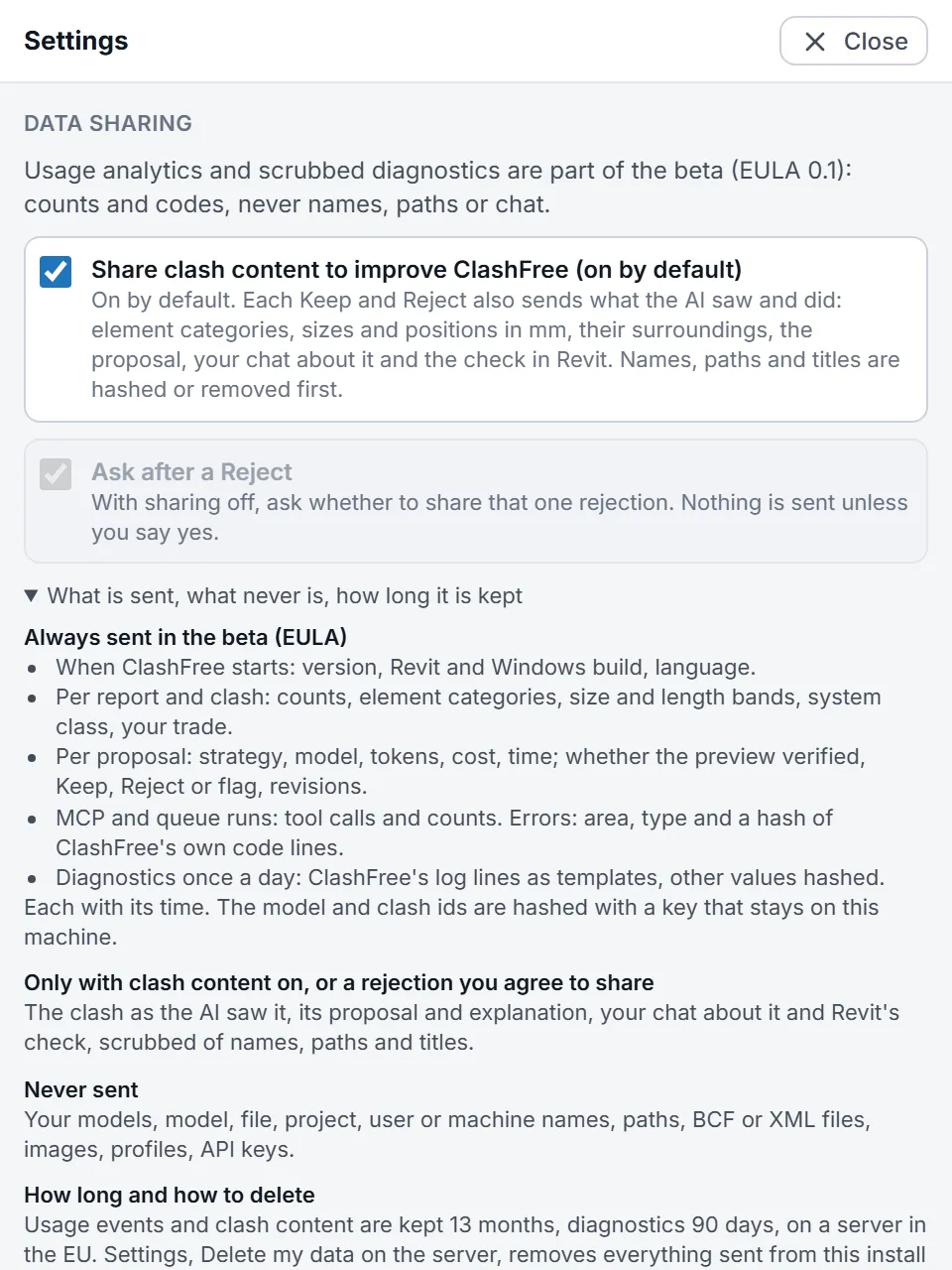
- Data sharing. Usage analytics and scrubbed diagnostics are part of the beta: counts and codes, never names, paths or chat. Share clash content to improve ClashFree (on by default) sends a scrubbed record of each Keep and Reject; turn it off any time. With it off, Ask after a Reject lets you share one rejection at a time. What is sent, what never is, how long it is kept lists it all.
- Beta. Activation, Send diagnostics now with an optional note for support, Delete my data on the server… and Check for updates.
- Usage on this machine. Your own numbers: runs, verified, keep, reject and flag rates, first-pass fixes, AI cost per kept fix.
- About. Version, build and links.
Your Revit model, clash reports and project, file, user or machine names are never sent. The full list is in the data terms and on Trust and data.
- 1Clash content sharing: on by default, off any time.
- 2Diagnostics go only when you click, with your note.
- 3Removes this install's data from the beta server.
11 · TRIAL
Trial, updates and expiry
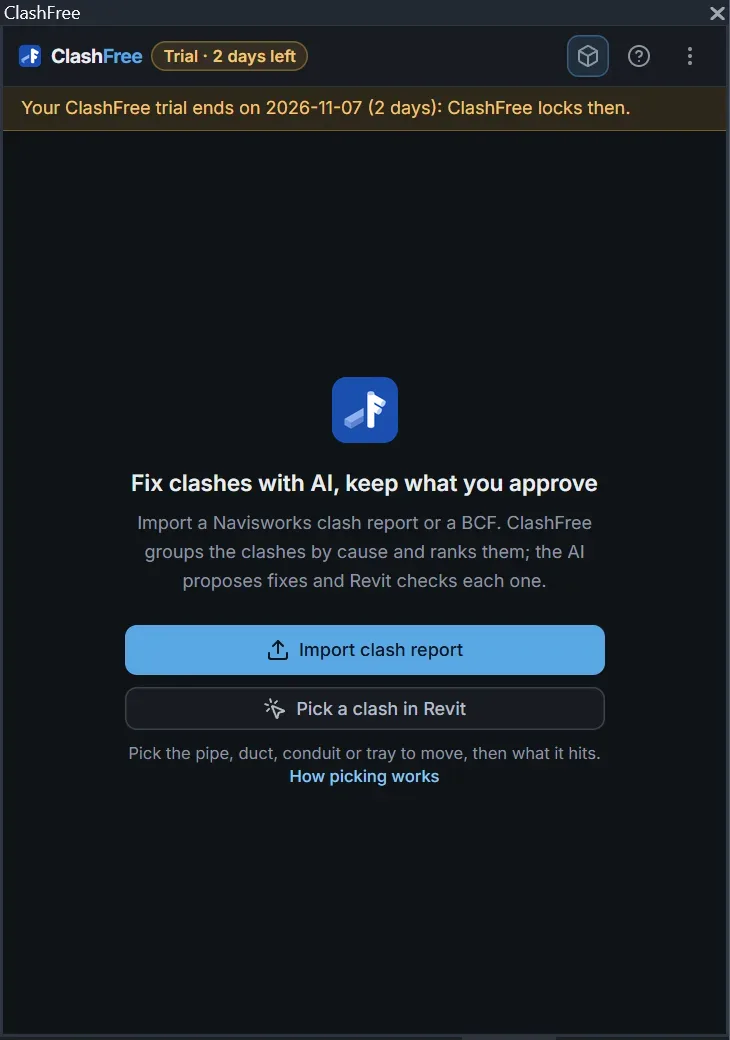
The header pill shows your trial's days left; it turns amber in the last three days. Click it for the beta settings. To ask for more time, reply to your welcome e-mail or contact us.
When the trial ends ClashFree locks: your model and every kept fix stay, a fix preview still open can be rejected, and the page says whom to write to.
ClashFree checks for a new beta once a day and shows a banner with Download; when your version is no longer supported the banner is red. Each beta build stops making new AI proposals 120 days after it was built (the pane warns 14 days before); Keep, Reject and stored proposals keep working. Install the new version over the old one with Revit closed.
- 1The pill: blue, amber in the last 3 days, red once ended.
- 2The lock page: nothing you kept is undone.
12 · TROUBLESHOOTING
Troubleshooting
| Problem | What to do |
|---|---|
| No ClashFree tab in Revit | Check that %AppData%\Autodesk\Revit\Addins\<year>\clashfree.addin exists and that you did not choose Do Not Load. Reinstall to reset. |
| The pane is blank | Install the Microsoft Edge WebView2 Runtime, then restart Revit. |
| No confirmation or code e-mail | Check spam, then use Send again (a few codes per hour). Codes are valid 10 minutes. |
| Invite code not accepted | Use the e-mail you signed up with. A code is valid 60 days and activates up to three PCs; contact us for a new one. |
| "The AI is not set up" | Ribbon API key and paste your Anthropic key, or work from Claude over MCP. |
| Claude does not see ClashFree | Revit and a model must be open. Run ClashFree.Mcp.exe doctor (section 08) and restart Claude Desktop. |
| A fix was flagged | No option passed verification or every option broke a hard limit; the reason and the limit code are on the clash page. Revise in chat or fix it by hand. |
| Something else went wrong | Settings → Beta → type a short note → Send diagnostics now. Logs are in %LocalAppData%\ClashFree\logs. |
Still stuck? Support lists every way to reach us, or write to support@clashfree.app.
- 1
doctorchecks each Claude client and whether Revit answers; paste its last line into a support mail.
help/img/mcp-doctor.png
Go deeper
How coordinators decide a clash, and how ClashFree handles each case: the complete MEP clash resolution workflow, duct vs pipe, pipe vs beam, gravity drainage, risers, working from Claude, and how the AI decides.
Need a hand?
We answer every beta tester.
Reply to your welcome e-mail, write to support@clashfree.app, or send diagnostics from the pane with a note: we read them all.