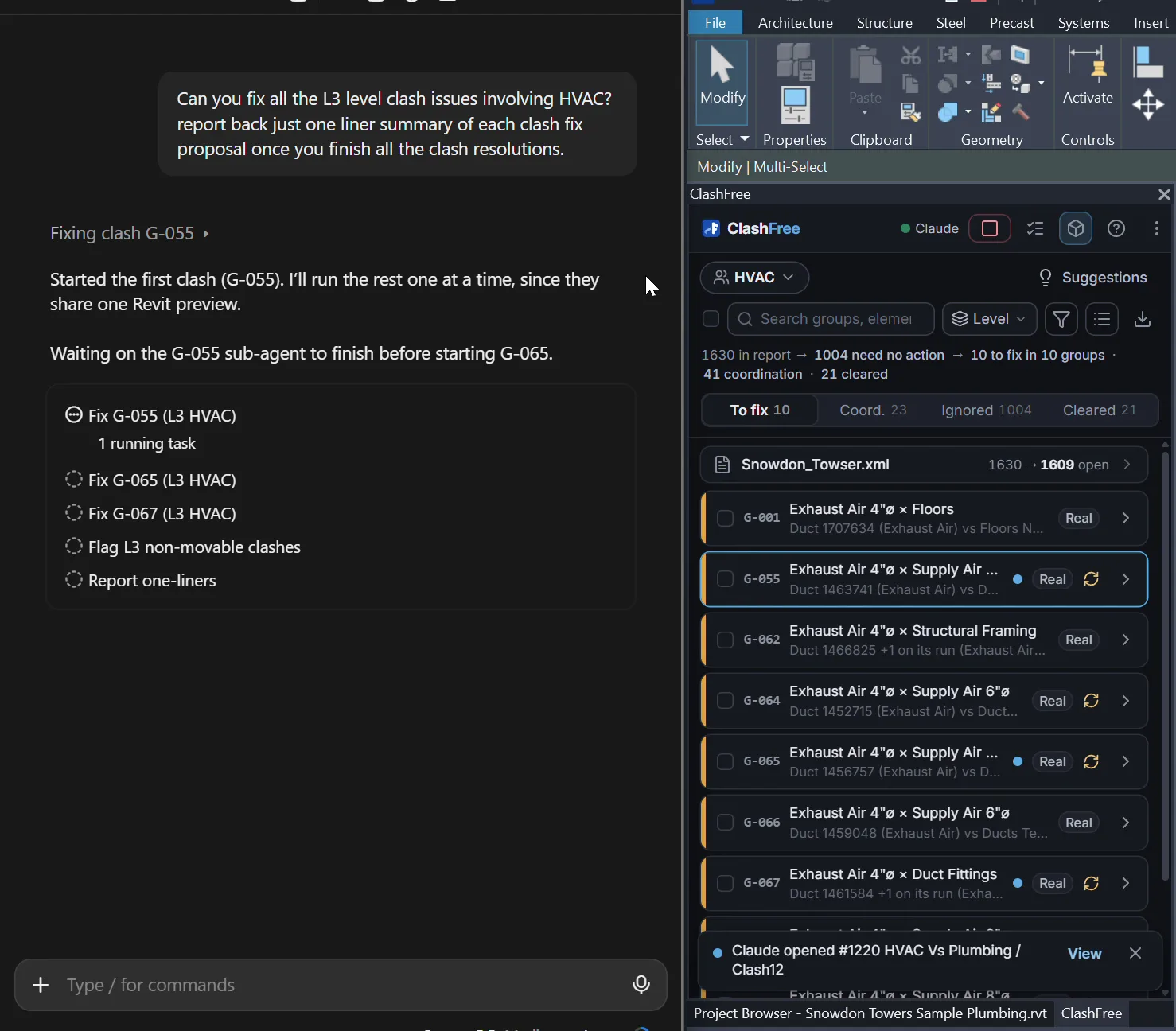
Set it up
- Install with Claude ticked. The ClashFree installer looks for Claude Desktop and Claude Code and offers to connect each one it finds. To connect later, run
ClashFree.Mcp.exe register --client claude-desktop(orclaude-code) from%LocalAppData%\Programs\ClashFree. - Open Revit and the pane. Start Revit, open your MEP host model, open the ClashFree pane and import your clash report. The review session lives in the pane; a green dot in its header shows Claude's connection.
- Ask Claude. Ask for the clash status or the first group to fix. Claude reads the board, opens a clash, looks around it, lists the scored options and proposes a fix.
- Review and keep in the pane. Each proposal is a verified preview in Revit and a pending item in the pane. Keep or Reject it there; Claude never takes over the pane.
- If something does not connect. Run
ClashFree.Mcp.exe doctor: it shows the version, whether Revit with the add-in answers and which Claude clients are registered.
The tools Claude gets
Claude works through these tools only. None of them commits a change.
| Tool | What it does |
|---|---|
get_status | Revit, the model, links, the pane, report counts, the open clash and preview. |
list_groups / get_group / get_clash | The clash board: priority, who moves and why, the clashes and their state. |
open_clash | Opens a group's next clash, or one clash, as the pane's Review click; re-tests it first. |
open_selection | Opens the clash between the two elements selected in Revit. |
get_clash_context | The clash as the AI sees it: both elements, free space, obstacles, both runs and their fittings. |
get_section | A section across or along the run, with the elements it cuts. |
get_free_space | Free bands for the run's centreline over a whole stretch. |
get_elements_near | The nearest elements: side, gap, movable or fixed and why. |
get_run | One run through its fittings, from any element on it. |
plan_route | A dry run of a reroute: the cheapest route or why there is none. Nothing changes. |
get_options | Every feasible fix, scored and ranked, with the options removed and why. |
propose_fix | Proposes a fix (an option id, best, or its own with a reason): validated, previewed, verified in Revit. |
reject_preview | Drops the open clash's preview. |
get_queue | The pane's AI queue and pending proposals. |
get_grouping_input / propose_grouping | Reviews how the report is grouped and suggests merges, splits and ignores for you to accept. |
A typical session
Claude checks the status, lists the groups, opens the first clash, reads its context and the runs around it, asks for the scored options and proposes the best one. Revit previews and verifies it; Claude reads the verdict and either tells you it is ready to keep in the pane, proposes again, or moves to the next group. Proposals that fail or need a person come back with the reason.
A good split of work: let the pane's AI queue propose in bulk, then ask Claude to take the clashes it flagged or failed, one at a time. Without an API key in the pane, Send to AI still fills the queue, and Claude takes the queued items with get_queue.
How ClashFree handles it
Claude's proposals go through the same validator, preview and verification as the pane's own AI, and the AI never outputs coordinates: Claude picks a strategy and its parameters, code builds the geometry. Claude and the pane's AI have the same strategies; over MCP Claude can also look around with sections, free space and nearby elements and explore route frames of its own with plan_route.
There is no Keep tool. While you look at the clash Claude is working on, the pane shows its budget and a Stop button. When the trial has ended, only the status and Reject remain, so an open preview can always be rolled back.
Claude works on your own Claude plan; no Anthropic API key is needed for this path. Linked models and other trades' elements stay read-only.